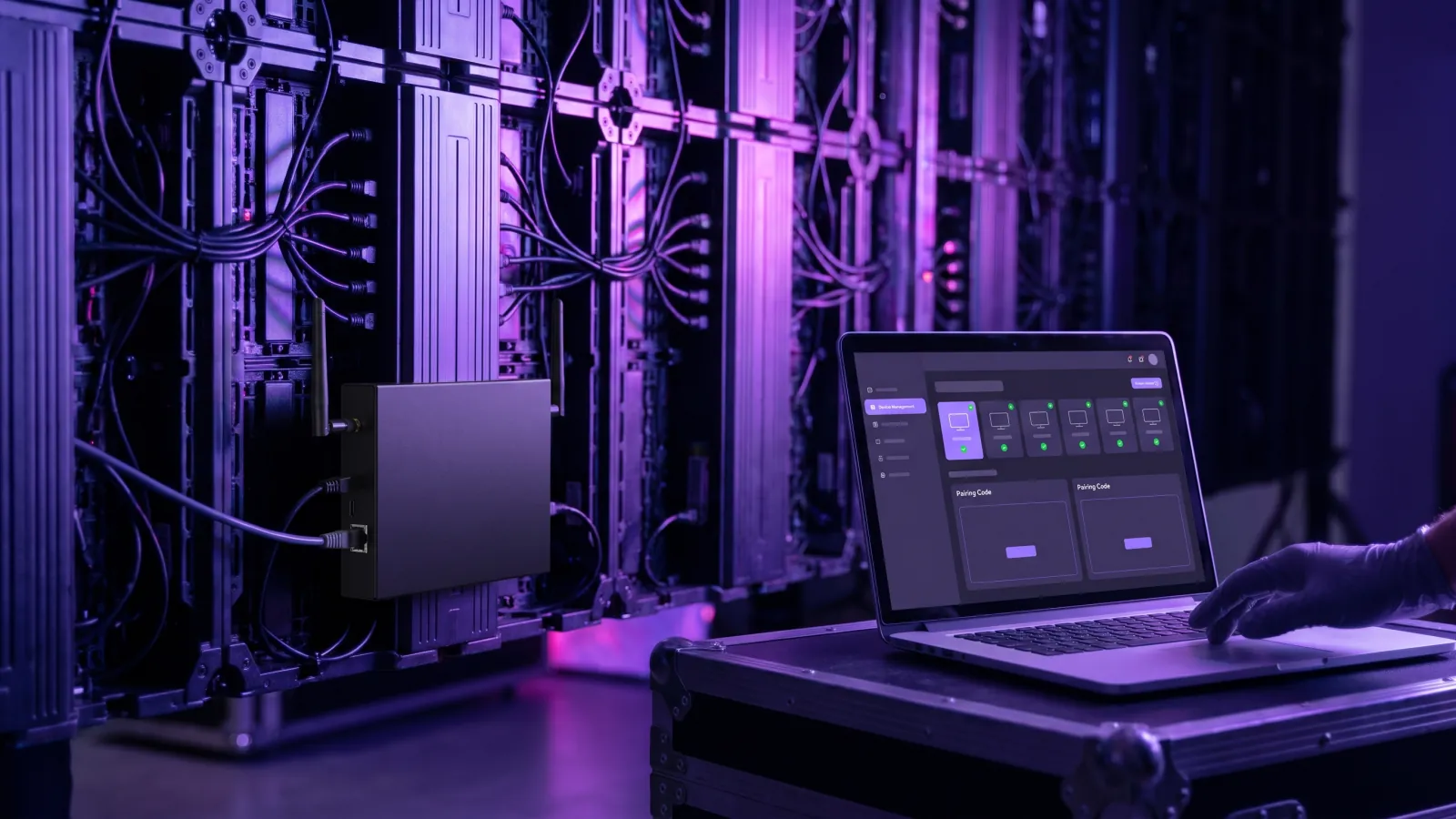
Short answer: GoVista Player for Android is installed on a NovaStar Taurus LED multimedia player through ViPlex Express, NovaStar's Windows software. You turn off NovaStar's built-in player (PlayService), install the GoVista APK so it starts automatically on boot, and add the device to the GoVista dashboard with the pairing code it shows on screen. It takes about 5 minutes per screen. The tested models are the TB40 and the TU15 Pro.
This guide walks through the steps in order and states the limits, which matter as much as the steps: what GoVista manages on a Taurus unit, and what it does not.
What does GoVista do on a NovaStar Taurus, and what doesn't it do?
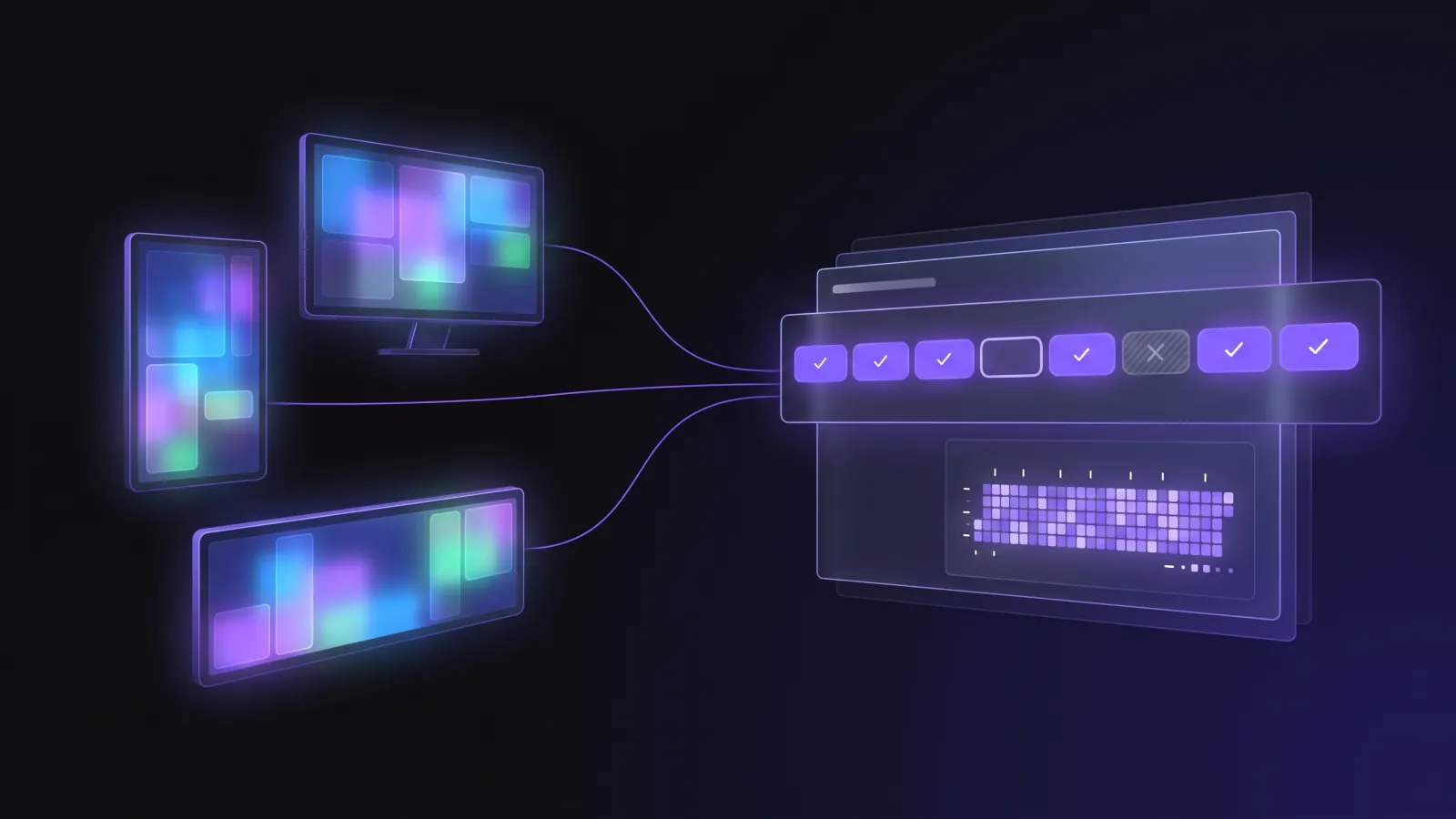
The GoVista Android player is installed on the Taurus unit in place of NovaStar's built-in player and is then managed from the GoVista dashboard. From the dashboard you get:
- Scheduling: content, playlists and schedule rules
- Remote reboot
- Brightness and blackout
- Auto-start after a power loss
- A crash watchdog that restarts the player if it stops
What GoVista does not do is just as clear: sending and receiving card setup, meaning the LED screen's resolution, cabinet layout and calibration, stays in NovaStar's own tools. GoVista does not touch those card settings; if the screen shows a correct picture on the NovaStar side, GoVista plays content on it. Colorlight controllers are not yet supported.
Which Taurus models are supported?
GoVista has been tested on the TB40 and the TU15 Pro. Other Taurus models such as the TB30 and TU20 run the same Taurus Android and are expected to work, but nobody has tested GoVista on them yet. If you are installing on one of those, try a single unit first. The current status is on the compatibility page. We state compatibility at two levels: “tested” means the GoVista player has actually been run on that model; “expected” means the model runs the same Taurus Android and should work, but nobody has tried it yet.
What do you need before you start?
Have these ready:
- A Windows PC: ViPlex Express runs on Windows only (64-bit; Windows 7, 8, 10, 11). macOS and Linux are not supported.
- The same network: the PC and the Taurus unit must be on the same Wi-Fi or wired network.
- The GoVista Player APK, from govista.app/downloads. For LED screens we recommend the Lite build (about 24 MB).
- Internet access for the Taurus unit, for pairing and for downloading content.
- A GoVista account: the dashboard you will add the device to.
How do you install the GoVista Android player, step by step?
- Download and install ViPlex Express from NovaStar's official download page (novastar.tech/downloads) on your Windows PC.
- Download the GoVista Player APK: save the Lite build of the Android player from govista.app/downloads.
- Join the same network: by default the Taurus unit opens its own Wi-Fi access point, named AP-xxxxxxxx; connect your PC to it. You can also connect the unit to your local network with an Ethernet cable; the PC and the unit must be on the same subnet.
- Connect with ViPlex Express: the app lists the NovaStar devices on the network. Select yours and click Connect. The user name is admin; the default password is in our LED setup guide.
- Open the User Software menu: on the ViPlex Express home screen, type novasoft on your keyboard; you do not need to type it into a field. A User Software option appears; click it.
- Turn off PlayService: select your device and disable PlayService. This stops NovaStar's built-in media player; if you skip it, GoVista may not appear on screen.
- Install the APK: in the same menu click Install, choose the GoVista APK, tick Auto launch on startup and Automatically run after installation, and start the install.
- Pair with the dashboard: when the app starts it shows a pairing code. In the GoVista dashboard go to Network, then Devices, click Add Device, enter the code, choose a device name and store, and click Pair. The paired device starts downloading content and shows as Online.
What should you check after installing?
Before publishing the first content, confirm the screen resolution on the NovaStar side; your GoVista layout should be built for that resolution. Then pull the power cable and plug it back in to check that GoVista starts on its own: a screen that returns to playback by itself after a power cut is the setting that saves the most time in the field.
For later APK updates you can enable ADB. Once ADB is turned on from the hidden debug menu in ViPlex Express, you can install APKs from any computer on the same network (Windows, Mac or Linux) without physical access to the unit. This is an advanced step; set up your network security accordingly.
Start with one unit: finish every step on the first Taurus and use the proof-of-play report to confirm the screen played as scheduled overnight before moving on to the others. That way a setup mistake is caught before it spreads to every screen.
How do you fix the most common problems?
The four situations we see most in the field:
- ViPlex Express cannot find the device: check that the PC and the unit are on the same network, and try turning off the firewall or antivirus for a moment.
- The screen stays black after PlayService is turned off: install the APK with Auto launch on startup ticked and restart the unit by unplugging it.
- The device shows as offline after pairing: the Taurus unit's own Wi-Fi access point gives a local connection only; it needs Ethernet or a Wi-Fi connection to a router to reach the internet.
- Installing from a USB stick does not work: Taurus units do not support automatic APK installs over USB; use ViPlex Express.
How do you install on several LED screens?
ViPlex Express shows every NovaStar device on the network; install the APK on each one and repeat the pairing for each device. Paired screens are managed from the same dashboard as your other GoVista screens (Android, Samsung Tizen, LG webOS, Windows, Linux and web players), with the same schedules and the same proof-of-play reports.
The illustrated version of the setup is in the LED setup guide (govista.app/guides/led-setup), and the test status of each model on the compatibility page (govista.app/compatibility). If you get stuck on a step, write to us from the support center.