Android Ekranlara GoVista Kurulumu (2026)
GoVista'yı Android ekran panelleri ve tabletlerine Device Owner kiosk kilitlemesiyle kurun. Üç kayıt yolu: test için APK yükleme, NFC ve QR ile kayıt.
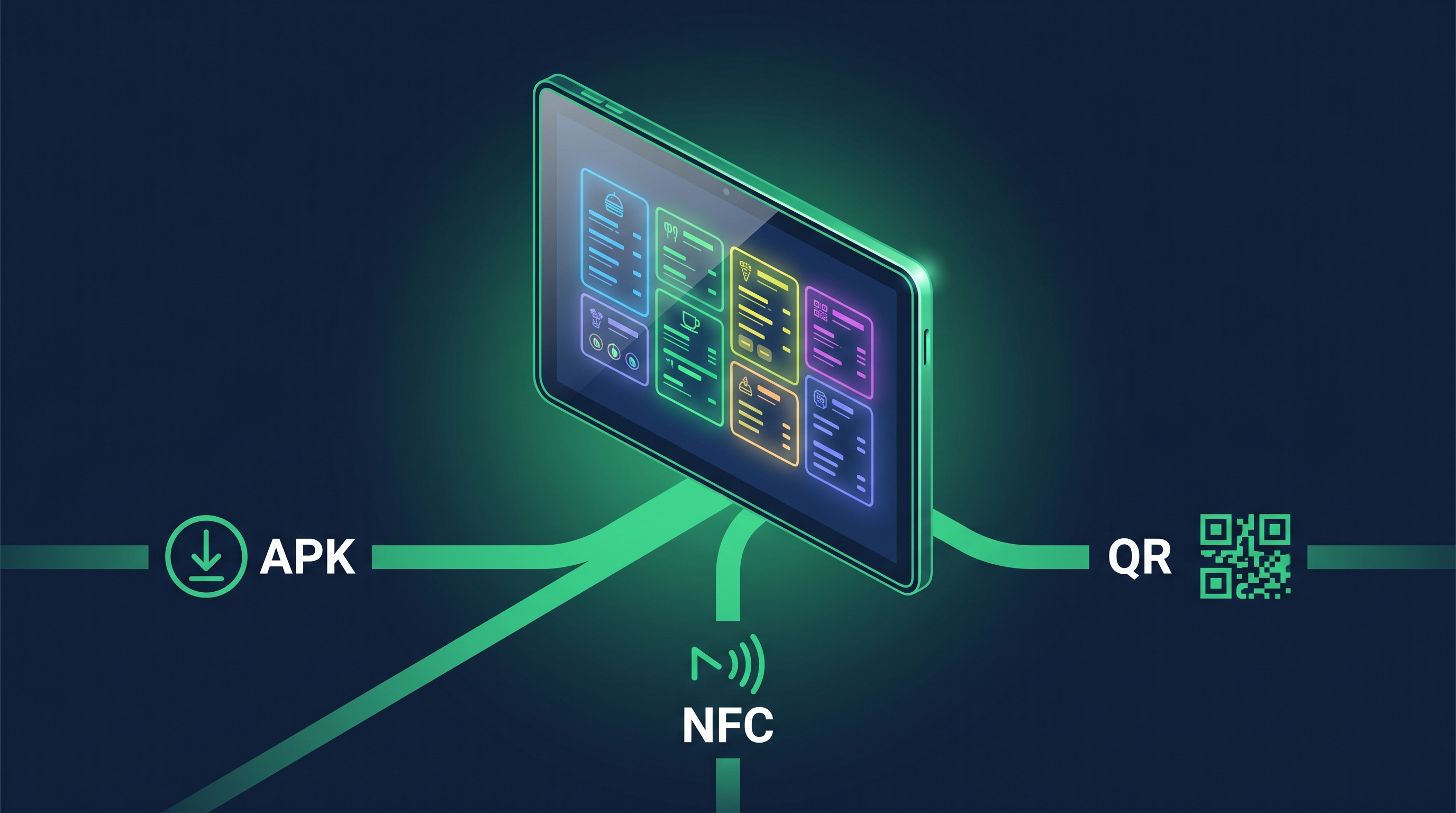
GoVista on Android — Real Device Setup
Android is the most flexible signage platform — and the only one with true Device Owner kiosk lockdown. This guide covers sideloading for dev, NFC bump for fleet rollouts, and QR enrollment for the standard zero-touch path.
TL;DR — pick your path
flowchart TD
    Start[I need GoVista on an Android signage device] --> Q1{How many devices?}
    Q1 -->|1 — just testing| APK[Path 1: Sideload APK<br/>5 min, ADB grant]
    Q1 -->|Device has NFC + Welcome screen| NFC[Path 2: NFC Bump<br/>3 min, programmer phone]
    Q1 -->|5+ rollout| QR[Path 3: QR Enrollment<br/>2 min/device, fleet path]

    APK --> ResultAPK[✅ Easiest for dev<br/>⚠️ Needs factory reset]
    NFC --> ResultNFC[✅ Zero-touch<br/>⚠️ NFC hardware required]
    QR --> ResultQR[✅ Universal fleet path<br/>✅ Same QR for all devices]

    style APK fill:#0e7490,stroke:#155e75,color:#fff
    style NFC fill:#d97706,stroke:#b45309,color:#fff
    style QR fill:#059669,stroke:#047857,color:#fff
| Path 1 — Sideload APK | Path 2 — NFC Bump | Path 3 — QR Enrollment | |
|---|---|---|---|
| Time per device | ~5 min | ~3 min | ~2 min |
| Tooling needed | ADB + USB cable | NFC-equipped phone | Printed QR card |
| Device prereq | Unprovisioned / factory-reset | Factory-fresh + NFC hardware | Factory-fresh + Android 7+ |
| Device Owner grant | Manual ADB step | Automatic | Automatic |
| Bulk-deploy friendly | ❌ ADB per device | ⚠️ Needs NFC alignment | ✅ Same QR, mass scan |
| Good for | Dev/QA panel | Phone-shaped tablets | Standard fleet rollout |
Before you start — Device Owner is the magic word
GoVista locks Android devices into kiosk mode using Device Owner mode — the most privileged app role in Android Enterprise. With it, GoVista can:
- Hide the navigation bar and status bar
- Block the Home button, Recents button, Power menu
- Disable USB debugging, Wi-Fi changes, factory reset
- Auto-restart on crash via a system-level watchdog
- Pin itself as the device's only app (Lock Task Mode)
Critical: Device Owner can ONLY be granted on a device with NO other accounts configured. If a Google account is logged in, or the device has been used, you must factory-reset first. This is an Android Enterprise security guarantee, not a GoVista limitation.
Path 1 — Sideload APK (5 min, dev/QA)
The fastest path for a dev panel you'll iterate on.
Steps
-
On the Android device: Settings → Security → enable Install Unknown Apps for your file manager or browser.
-
Download the APK from the dashboard wizard:
https://vjllztzjsjnmdxzwnaxw.supabase.co/storage/v1/object/public/releases/android/govista-player-v1.7.8-lite-debug.apk -
Install via file manager. Tap the downloaded APK → Install.
-
Open GoVista. It will say "Device Owner not granted" — expected. Move to ADB grant.
Grant Device Owner via ADB
-
Enable USB Debugging on the device:
- Settings → About → tap Build Number 7 times → back to Settings → System → Developer Options → enable USB debugging
-
Connect via USB and verify ADB sees it:
adb devices adb shell pm list packages com.govision.player.lite -
Grant Device Owner:
adb shell dpm set-device-owner com.govision.player.lite/com.govision.player.kiosk.DeviceAdminReceiverThis fails with
java.lang.IllegalStateException: Not allowed to set the device owner because there are already several users on the deviceif any other account exists. Factory-reset and retry. -
Restart GoVista. Should now lock into kiosk mode and show a pairing code.
Limitations
- Requires factory-reset state for the DO grant.
- Each device needs the ADB step. Not scalable beyond 5 devices.
Path 2 — NFC Bump (3 min/device, zero-touch)
Standard Android Enterprise NFC provisioning. A programmer phone with an NFC payload, tapped against a factory-fresh device on its Welcome screen, triggers fully automated provisioning.
Prerequisites
- Programmer phone with NFC (any modern Pixel, Samsung Galaxy, etc.)
- NFC Provisioning app on the programmer (Google's sample app or an EMM tool)
- Target Android signage device with NFC hardware — verify in specs before relying on this path. Most TV-form-factor Android signage panels DO NOT have NFC.
The DPC payload
The programmer phone sends this JSON to the target via NFC:
{
  "android.app.extra.PROVISIONING_DEVICE_ADMIN_COMPONENT_NAME":
    "com.govision.player.lite/com.govision.player.kiosk.DeviceAdminReceiver",
  "android.app.extra.PROVISIONING_DEVICE_ADMIN_PACKAGE_DOWNLOAD_LOCATION":
    "https://vjllztzjsjnmdxzwnaxw.supabase.co/storage/v1/object/public/releases/android/govista-player-v1.7.8-lite-debug.apk",
  "android.app.extra.PROVISIONING_DEVICE_ADMIN_PACKAGE_CHECKSUM":
    "<base64-sha256-of-apk>",
  "android.app.extra.PROVISIONING_LEAVE_ALL_SYSTEM_APPS_ENABLED": true,
  "android.app.extra.PROVISIONING_WIFI_SSID": "<customer-wifi-ssid>",
  "android.app.extra.PROVISIONING_WIFI_PASSWORD": "<wifi-password>"
}
The APK checksum: compute SHA-256 of the .apk file, base64-encode. The WiFi credentials are optional — without them, the target asks the installer to connect manually before downloading.
Deploy steps
- Factory-reset the target Android device. Boot to the Welcome screen.
- Tap the programmer phone's back to the target's NFC location (usually back of screen for tablets, edge for phones).
- Target shows "Setting up your device" and downloads the APK over its (newly-configured) WiFi.
- GoVista launches with Device Owner already granted. Pairing code appears.
Path 3 — QR Enrollment (2 min/device, standard fleet path)
The most-used Android Enterprise enrollment in 2024+. No NFC required. Same QR works for every device of the same model.
Generate the QR (one-time per release)
-
Compute the APK signature checksum:
apksigner verify --print-certs --verbose GoVista.apk # Look for "SHA-256 digest: ..." # Base64-encode the hex bytes -
Build the JSON payload:
{ "android.app.extra.PROVISIONING_DEVICE_ADMIN_COMPONENT_NAME": "com.govision.player.lite/com.govision.player.kiosk.DeviceAdminReceiver", "android.app.extra.PROVISIONING_DEVICE_ADMIN_SIGNATURE_CHECKSUM": "<base64-of-apk-signature>", "android.app.extra.PROVISIONING_DEVICE_ADMIN_PACKAGE_DOWNLOAD_LOCATION": "https://vjllztzjsjnmdxzwnaxw.supabase.co/storage/v1/object/public/releases/android/govista-player-v1.7.8-lite-debug.apk" } -
Convert JSON to a QR code using any generator. Print on a card or display on a phone.
Enroll a target device
- Factory-reset the target device. Power on to the Welcome screen.
- Tap any blank area of the Welcome screen 6 times rapidly. The QR reader opens.
- Connect to WiFi if prompted.
- Scan your QR. Device downloads the APK, installs, grants Device Owner. ~90 seconds total.
- GoVista launches in kiosk mode. Pairing code appears.
Bulk deployment
A two-person team can commission 50+ devices per hour with this method:
- Person A: factory-resets devices, taps Welcome screen 6 times, hands off
- Person B: connects WiFi, scans QR, monitors completion
MDM / EMM integration (Intune, Knox, MobileIron, Workspace ONE)
If your fleet is enrolled with an Enterprise Mobility Management platform, skip the manual paths above. Upload GoVista as a managed app, push to your kiosk device group, and the EMM handles Device Owner grant automatically.
We support the standard Android Enterprise managed-configuration schema. The DPC bundle config we publish includes:
apiBaseUrl— override the GoVista API URL (default:https://goled-production.up.railway.app)lockTaskMode— force enable kiosk lockdown on enrollment (default: true)pairingCode— pre-bound pairing code so the device auto-pairs on first boot (advanced)
Contact us for the GoVista DPC bundle XML to upload into your EMM console.
Samsung Knox Mobile Enrollment (KME)
For Samsung devices specifically, KME provides true zero-touch:
- Customer's IT admin uploads device IMEIs/serials to KME portal.
- Configures GoVista as the default app.
- Ships devices direct to the kiosk site.
- On first boot, device auto-enrolls — no human interaction needed.
Requires a Samsung B2B account + KME subscription on the customer's side.
Verification checklist (every install path)
- Device Owner granted — confirm with
adb shell dumpsys device_policy | grep -i owner. Should showcom.govision.player.lite. - Cold boot test — pull power 10 sec, reconnect. Device boots, GoVista appears within 60 sec.
- Kiosk lockdown — Home, Back, Recents buttons all blocked. Power menu disabled. No way to escape the app.
- Pairing code accepted — code entered, paired in dashboard.
- First content download — assigned playlist plays within 2 minutes.
- Network resilience — pull WiFi for 30 sec, reconnect. Player recovers.
- Crash recovery —
adb shell am force-stop com.govision.player.lite. Watchdog brings it back within 10 sec.
Troubleshooting
dpm set-device-owner fails with "Not allowed because there are already several users"
A Google account or other user exists on the device. Factory-reset and retry.
Welcome screen 6-tap doesn't open the QR reader
The device is either already provisioned (factory-reset it) or the OEM has disabled the QR-enrollment flow (rare — usually only on locked-down enterprise variants).
Device shows "Couldn't add account" during QR enrollment
The APK URL is wrong, unreachable, or the checksum doesn't match. Verify the URL loads in a browser. Re-compute the signature checksum.
Pairing code never appears after install
GoVista is hitting an API error. adb logcat | grep -i govista to see runtime errors. Usually a firewall blocking https://goled-production.up.railway.app.
Device pings out of kiosk mode randomly
A system app is opening over GoVista (e.g., system update prompt). Check dumpsys window | grep mFocusedApp. The fix is to add the offending app to the kiosk allowlist via Device Owner Lock Task Allowlist API.
What's next
Once a device is commissioned:
- Dashboard → Network → [device] — live telemetry: bundle version, JVM heap, CPU temp, frame drops
- Dashboard → Network → [device] → Commands — reboot, screenshot, cache clear, force-update
- Dashboard → Schedules — daypart on/off and content rotation
Last verified: Android 13 on Lenovo Tab M8, Android 14 on Samsung Tab A9. May 2026.