Instalar GoVista en Samsung Tizen Signage (2026)
Guía paso a paso para configurar GoVista en paneles B2B Samsung (Tizen 4.0+): URL Launcher, Tizen Studio con SDB o aprovisionamiento masivo USB SSSP.
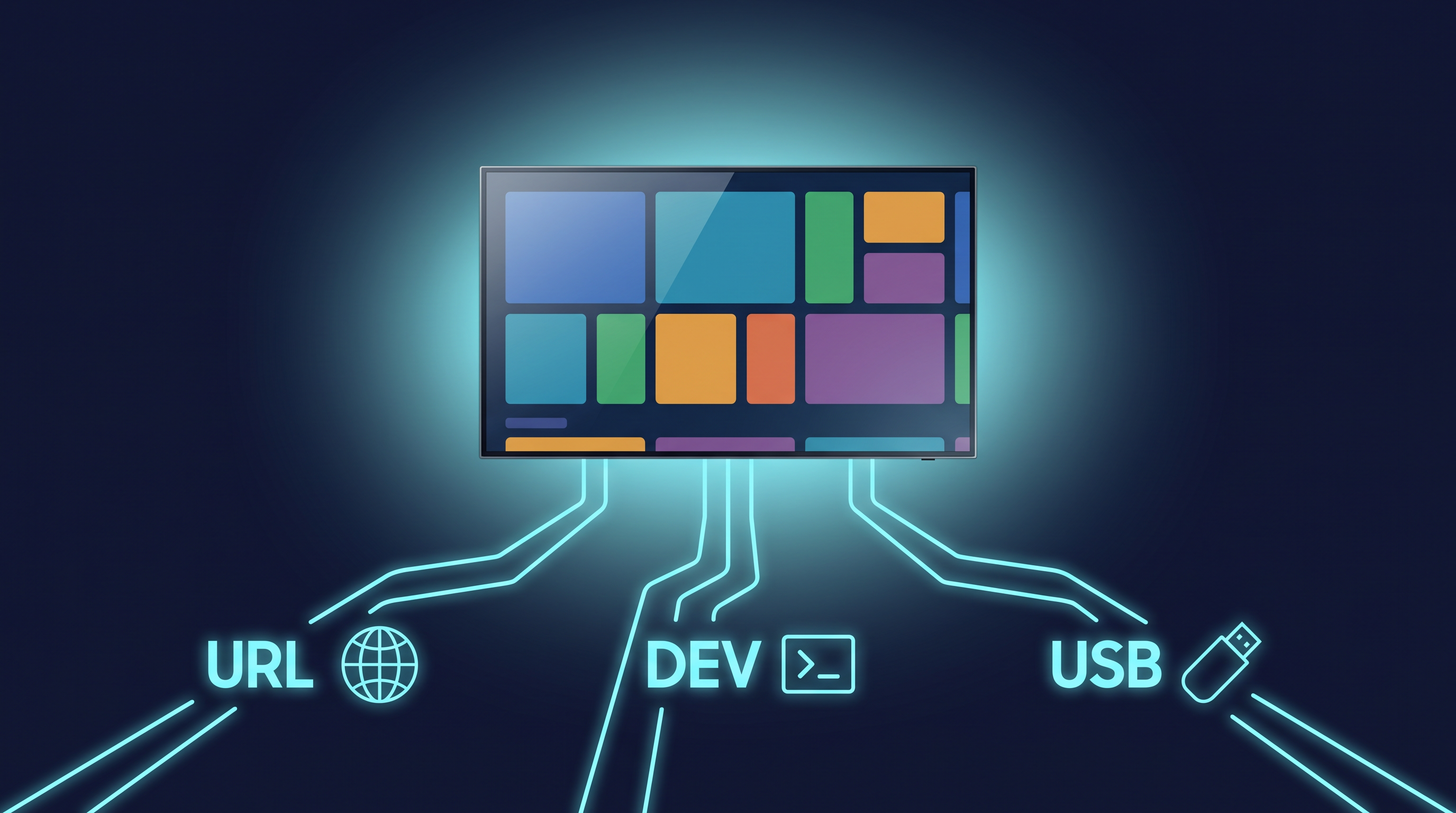
GoVista on Samsung Tizen Signage — Real Device Setup
You've tested in the simulator. Now you need it on real Samsung B2B hardware. This guide covers every supported install path, the trade-offs, and how to verify the panel autolaunches into GoVista after every reboot.
TL;DR — pick your path
flowchart TD
    Start[I need GoVista on a real Samsung panel] --> Q1{How many panels?}
    Q1 -->|1 — just testing| URL[Path 1: URL Launcher<br/>5 minutes, zero install]
    Q1 -->|1–5 — my dev panel| SDB[Path 2: Tizen Studio + SDB<br/>Signed WGT install]
    Q1 -->|5+ — customer rollout| USB[Path 3: USB SSSP<br/>Plug, boot, done]

    URL --> ResultURL[✅ Best for first contact<br/>⚠️ No SystemControl access]
    SDB --> ResultSDB[✅ Full WGT privileges<br/>⚠️ Per-panel SDB step]
    USB --> ResultUSB[✅ Bulk + zero-touch<br/>✅ Pinned as default app]

    style URL fill:#0891b2,stroke:#0e7490,color:#fff
    style SDB fill:#0e7490,stroke:#155e75,color:#fff
    style USB fill:#059669,stroke:#047857,color:#fff
| Path 1 — URL Launcher | Path 2 — Tizen Studio + SDB | Path 3 — USB SSSP | |
|---|---|---|---|
| Time per panel | ~5 min | ~15 min (after Studio setup) | ~45 sec |
| Tooling needed | Just the remote | Mac/PC + Tizen Studio + Cert | USB stick, FAT32 |
| WGT install | No (URL only) | Yes (signed) | Yes (pre-signed) |
| Pinned as default | Yes (via Play Via) | Manual menu step | Automatic |
| SystemControl API | ❌ Most blocked | ✅ All permitted | ✅ All permitted |
| Remote update flow | Service worker (PWA) | SDB push or MagicInfo | USB or MagicInfo |
| Good for | First test, demos | Dev/QA panel | Customer deployment |
My recommendation: start with Path 1 to confirm the panel renders correctly. Promote to Path 3 once you're ready to deploy to a customer site.
Before you start — what hardware works?
GoVista requires Samsung Commercial Signage with the Smart Signage Platform (SSSP) or Tizen Enterprise Platform (TEP). Consumer Samsung Smart TVs (QLED, Neo QLED, OLED-S) will not honor the autolaunch metadata and are not supported.
| Tizen Version | Platform | Example Models |
|---|---|---|
| Tizen 8.0 | TEP | OM55DX, OH55DX (2024) |
| Tizen 7.0 | TEP | QB50C, QM50C, QH50C (2023) |
| Tizen 6.5 | SSSP 10 | QMB, QBB, QHB (2022) |
| Tizen 6.0 | SSSP 9 | QMR, QBR (2021) |
| Tizen 5.5 | SSSP 8 | QMN, QBN (2020) |
| Tizen 4.0 | SSSP 7 | QMH, QBH, QHH (2018) |
If the model number includes one of: QM, QB, QH, OM, OH, SH — you're on commercial signage. Anything starting with Q9, Q8, Q7 is a consumer TV and won't work.
Pro tip — the admin password. Most Samsung commercial signage panels ship with admin password
00000(five zeros) for system menus. Some older models use0000(four zeros). If neither works, contact your Samsung reseller for the panel-specific reset code.
Path 1 — URL Launcher (5 minutes, zero install)
Fastest way to a real Samsung panel. The panel becomes a thin client loading the GoVista PWA from https://player.govista.app.
What you need
- 1 × Samsung commercial signage panel powered on (Tizen 4.0+)
- Samsung remote
- Network: panel needs internet access (verify in Menu → Network)
Steps
-
Press HOME on the Samsung remote. Navigate to Menu → System.
-
Scroll down to Play Via. Select URL Launcher.
-
Enter the admin password if prompted:
00000. -
Pick URL Launcher Settings → URL.
-
Type the URL exactly:
https://player.govista.app -
Save and reboot the panel.
-
Pairing screen appears within ~30 seconds with a 6-digit code. In the GoVista dashboard, Network → Add Device → Enter Pairing Code.
Verify autolaunch works
Power-cycle the panel by pulling the wall plug for 10 seconds (a real cold boot, not standby). The panel should come back up directly into GoVista without any menu intervention.
Limitations of URL Launcher mode
- No SystemControl API access. Calls to
tizen.systeminfoorb2bapis.b2bcontrolfor brightness/volume/source switching are silently rejected. The PWA degrades gracefully. - Updates via PWA service worker. Panel pulls new bundles automatically.
- Cannot remote-reboot the OS. The dashboard's
Reboot Devicebutton does a page reload.
Path 2 — Tizen Studio + SDB (developer workflow)
For dev panels you'll iterate on. Requires Tizen Studio + a Samsung Distributor Certificate (one-time setup).
One-time setup
On your Mac / PC:
-
Download Tizen Studio from developer.tizen.org.
-
Install required extensions in Tizen Studio Package Manager:
- Samsung TV Extension
- Samsung Certificate Extension
-
Create a Samsung Distributor Certificate:
- Open Tools → Certificate Manager → +
- Pick Samsung Certificate (TV)
- Choose Distributor Certificate for development panels
- Follow the wizard, save the profile
On the panel:
-
Press HOME → Menu → Network → Wi-Fi/Wired → confirm the panel has a valid IP.
-
Navigate to Menu → System → Device Manager → enable Developer Mode. Enter your dev machine's IP when prompted.
-
Note the panel's IP for the SDB connection.
Build and deploy GoVista
From the repo root:
cd apps/tizen-player
pnpm build
This produces dist/GoVistaPlayer.wgt (already signed if your certificate is configured).
Connect to the panel and install:
sdb connect 192.168.1.123       # use your panel's IP
sdb devices                      # confirm it shows up
sdb install dist/GoVistaPlayer.wgt
sdb shell 0 vd_apprunner com.govista.player
The panel switches to GoVista immediately. To make it the boot-default app, set Menu → System → Play Via → Custom App in the panel menus.
Live-debug
sdb dlog -v time | grep -i govista
Streams runtime logs from the panel. Useful for catching JS errors or network issues.
Limitations
- Developer Mode requires panel IP whitelist. Commercial signage panels in production tend to lock this down.
- Cannot push WGT remotely. Need local network access. For remote deployment use Path 3 or MagicInfo.
Path 3 — USB SSSP (commercial deployment)
The way you roll out 50+ panels without a CLI session per device. A FAT32 USB stick with the SSSP folder structure, installed through the panel's URL Launcher menu — about a minute per panel.
What the stick needs
A standard USB-A flash drive formatted FAT32. 2GB or larger is plenty (WGT is ~3MB).
Get the image
Download govista-tizen-usb-v<version>.zip from the dashboard onboarding wizard (Network → Add Device → Samsung Tizen → USB), or build it locally:
cd apps/tizen-player
pnpm build           # builds dist/GoVistaPlayer.wgt
node scripts/build-usb-image.cjs
Extract the zip onto the root of your USB stick. The resulting layout:
USB-DRIVE/
└── SSSP/
    ├── sssp_config.xml      ← Samsung SSSP install manifest (generated)
    └── sssp_dl.wgt          ← the player, renamed per SSSP convention
The sssp_config.xml uses Samsung's flat format — <ver> follows the x.yyy
convention (1.2.3 → 1.203) and must increase for upgrades:
<?xml version="1.0" encoding="UTF-8"?>
<widget>
    <ver>1.203</ver>
    <size>1754701</size>
    <widgetname>sssp_dl</widgetname>
    <webtype>tizen</webtype>
</widget>
Per-panel installation (~1 minute)
- Plug the USB stick into any USB port on the panel.
- Press Home on the remote and open URL Launcher Settings.
- Select Install from USB Device and confirm (enter the panel PIN if prompted — default
0000). - The panel installs the WGT and relaunches into the GoVista pairing screen.
- Pull the USB. Done.
Even faster — no USB at all: URL Launcher can install straight from our server. Home → URL Launcher Settings → Change URL → enter
https://player.govista.app→ Done. The panel downloads the manifest + WGT and installs automatically, and picks up new versions whenever we publish an update.
Bulk deployment workflow
For a 50-panel rollout, prep 2–3 USB sticks with the same image. A two-person team can commission 50 Samsung panels in about an hour.
Verify the panel is pinned correctly
After USB removal and reboot, the panel should boot directly to GoVista without showing the Samsung Smart Hub home screen. If it shows Smart Hub, the SSSP install didn't take — most often:
- The
SSSPfolder isn't at the USB root (config + WGT must both sit inside/SSSP/). - The USB is exFAT or NTFS, not FAT32.
- The WGT isn't named
sssp_dl.wgt, or<widgetname>doesn't match the filename. <ver>isn't higher than the currently installed version — the panel skips downgrades.
Verification checklist (every install path)
- Cold boot test — pull power 10 sec, reconnect, panel lands on GoVista within 60 sec.
- Heartbeat appears in dashboard — device shows online within 30 sec.
- Pairing code accepted — device moves from "pairing" to "active" state.
- First content download — assigned playlist starts playing within 2 minutes.
- Network resilience — pull the network cable for 30 sec, reconnect, player recovers.
- App crash recovery —
COMMAND_APP_RESTARTfrom dashboard reloads within 30 sec.
Troubleshooting
Panel boots to Smart Hub instead of GoVista
Cause: Play Via is not pointing at GoVista.
Fix: Menu → System → Play Via. Confirm:
- Path 1:
URL Launcher, URL exactlyhttps://player.govista.app - Path 2/3:
Custom App, packagecom.govista.player
"Cannot connect to server" on first launch
Cause: The panel hasn't gotten an IP yet, or DNS is blocked.
Fix: Menu → Network, confirm Wi-Fi/Ethernet shows a valid IP. From a laptop on the same network, ping player.govista.app. If DNS fails, the customer's router may need to allowlist *.govista.app and goled-production.up.railway.app.
Pairing code never appears
Cause: Player loaded but is hitting an API error.
Fix: Path 2 only — sdb dlog | grep -i govista to see runtime errors. Usually a firewall blocking the API.
After USB install, panel reboot-loops
Cause: WGT signature mismatch or malformed sssp_config.xml.
Fix: Pull the USB during boot loop, let the panel boot to Smart Hub. Regenerate the USB image from the dashboard (don't hand-edit XML). If persistent, factory-reset via service menu (Mute + 1 + 8 + 2 + Power).
"Application installation failed" toast appears at boot
Cause: The WGT requires a privilege the panel doesn't grant in non-signed mode.
Fix: Verify the WGT is signed with a Samsung Distributor Certificate. Path 1 (URL Launcher) doesn't need this. Path 2/3 do.
What's next
Once a panel is commissioned:
- Dashboard → Network → [device] — live telemetry: bundle version, frame drops, latency, signal strength
- Dashboard → Network → [device] → Commands — reboot, screenshot, cache clear, force-update
- Dashboard → Schedules — daypart on/off and content rotation
For full remote-control feature coverage by install path, see PLAYER_CAPABILITIES.md.
Internal: regenerating the artifacts
cd apps/tizen-player
pnpm build          # builds dist/GoVistaPlayer.wgt
pnpm build:usb      # builds releases/govista-tizen-usb-v<ver>.zip
The dashboard wizard's "Generate USB Image" button hits the same script via a server route.
Last verified: Tizen 7.0 on QB50C, May 2026.