Install GoVista on Windows or Linux (2026)
Install the GoVista player on Windows 10/11 or Linux: Windows installer with auto-login, Linux AppImage with a kiosk script, and 24/7 kiosk lockdown.
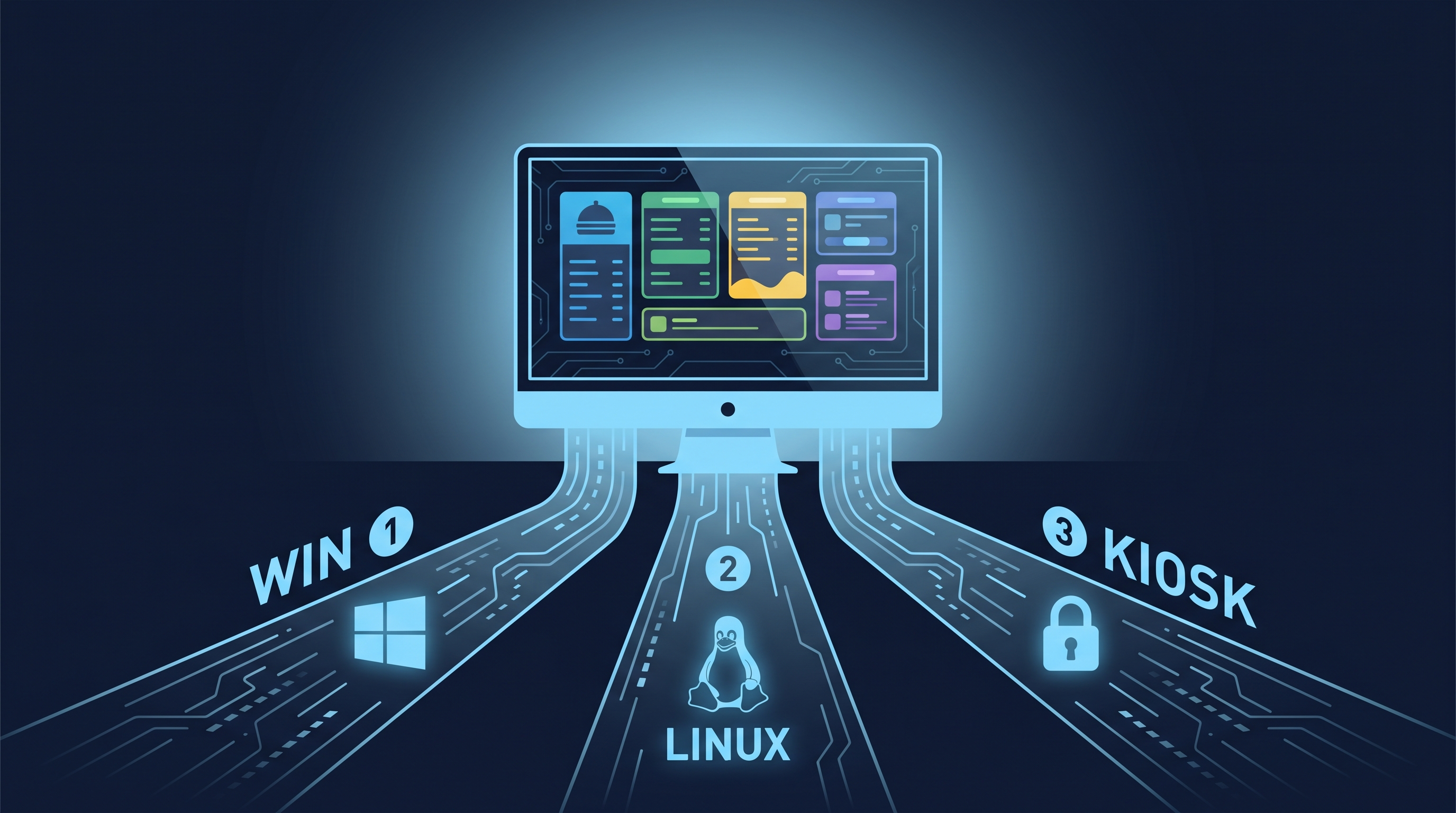
GoVista on Windows / Linux Desktop — Real Device Setup
Native Electron app — best fit when you want full OS integration. This guide covers Windows installer, Linux AppImage with kiosk script, and the unattended-kiosk recipe for true 24/7 unmanned signage.
TL;DR — pick your path
flowchart TD
    Start[I need GoVista on a Windows or Linux PC] --> Q1{Will someone log in?}
    Q1 -->|Yes — user is around| Win[Path 1: Windows Installer<br/>Click .exe, done]
    Q1 -->|Yes — Linux PC| Linux[Path 2: Linux AppImage<br/>One-line install script]
    Q1 -->|No — fully unattended| Unattended[Path 3: AutoLogon + Power Policy<br/>24/7 kiosk lockdown]

    Win --> ResultWin[✅ Easiest<br/>⚠️ Needs user login]
    Linux --> ResultLinux[✅ systemd watchdog<br/>⚠️ Linux familiarity]
    Unattended --> ResultUnattended[✅ True 24/7<br/>⚠️ Per-machine config]

    style Win fill:#0284c7,stroke:#0369a1,color:#fff
    style Linux fill:#059669,stroke:#047857,color:#fff
    style Unattended fill:#7c3aed,stroke:#5b21b6,color:#fff
| Path 1 — Windows Installer | Path 2 — Linux AppImage | Path 3 — Unattended Kiosk | |
|---|---|---|---|
| Time | ~5 min | ~10 min | ~15 min (after Path 1/2) |
| Auto-start on login | ✅ | ✅ via systemd | ✅ |
| Auto-start with no user logged in | ❌ | ⚠️ Needs autologin | ✅ With AutoLogon |
| Tamper-proof | ❌ User has full PC access | ⚠️ Configurable | ✅ With Shell Launcher (IoT) |
| Good for | Office PCs, demos | Pi alternatives, Linux signage | Dedicated kiosk hardware |
Path 1 — Windows Installer (5 min, easiest)
The fastest path for Windows. Auto-starts on every user login via a registry Run-key entry.
Steps
-
Download the installer from the dashboard wizard or directly:
https://vjllztzjsjnmdxzwnaxw.supabase.co/storage/v1/object/public/releases/windows/GoVista-Player-Lite-Setup-1.5.58.exe -
Run the .exe. Default install path is fine. Click next, next, finish.
-
App launches automatically showing a pairing code. Enter it in the GoVista dashboard.
-
Reboot the PC to verify auto-start works at login. If it doesn't, check Task Manager → Startup tab → confirm GoVista is enabled.
Verify auto-start
Pull the wall plug for 10 seconds, reconnect, let Windows boot. After login (manual or auto), GoVista should appear within 30 seconds. If the user account is set to AutoLogon (see Path 3), no login required.
Known limitations
- Requires a user to log in. The Run-key only fires after login. For unattended PCs, also enable Windows AutoLogon (Path 3).
- Default install is per-user. If you want a per-machine install for multi-user kiosks, use the silent install flags:
GoVista-Player-Setup.exe /S /allusers.
Path 2 — Linux AppImage + Kiosk Script (10 min, automated)
The Linux build is a single AppImage that runs on Ubuntu 22+, Debian 12+, Fedora 38+. We ship a kiosk setup script that handles everything (install, systemd, autologin, screen blanking).
One-line install (recommended)
curl -fsSL https://raw.githubusercontent.com/Ezagor-dev/goled/main/apps/windows-player/scripts/linux-kiosk-setup.sh \
  | sudo bash -s -- --autologin
This:
- Downloads the latest AppImage to
/opt/govision/ - Creates a systemd service
govision-playerwith auto-restart - Disables screen blanking and DPMS
- Configures autologin for the current user
- Enables and starts the service
Reboot. GoVista opens fullscreen at boot.
Manual install
If you want to inspect what the script does first:
# Download AppImage
wget -O ~/GoVista-Player.AppImage https://vjllztzjsjnmdxzwnaxw.supabase.co/storage/v1/object/public/releases/linux/GoVista-Player-1.5.58.AppImage
chmod +x ~/GoVista-Player.AppImage

# Test it works
~/GoVista-Player.AppImage
Then read scripts/linux-kiosk-setup.sh for the systemd unit file template and follow the steps you need.
What the systemd unit looks like
[Unit]
Description=GoVista Player
After=graphical.target

[Service]
User=pi
Environment=DISPLAY=:0
ExecStart=/opt/govision/GoVista-Player.AppImage
Restart=always
RestartSec=5

[Install]
WantedBy=graphical.target
Path 3 — Unattended Kiosk (15 min, true 24/7)
For dedicated signage PCs with no user nearby. Combines Path 1/2 with:
Windows AutoLogon
Makes Windows skip the login screen and boot straight to the desktop.
- Run
netplwizin the Start menu. - Uncheck "Users must enter a user name and password".
- Click OK. Enter the kiosk account's password twice when prompted.
- Reboot. Windows boots straight to desktop. GoVista (auto-start from Path 1) launches immediately.
Security caveat: AutoLogon writes a hashed-but-not-encrypted password to the registry (
HKLM\Software\Microsoft\Windows NT\CurrentVersion\Winlogon\DefaultPassword). Only use on physically secured kiosk PCs. Don't use on a laptop someone might steal.
Disable sleep, blanking, fast startup
# Run as Administrator
powercfg /change monitor-timeout-ac 0
powercfg /change standby-timeout-ac 0
powercfg /change disk-timeout-ac 0
Also: Control Panel → Power Options → Choose what the power buttons do → Change settings that are currently unavailable → uncheck "Turn on fast startup".
Fast Startup interferes with post-reboot auto-start because the OS resumes from hibernation instead of a clean cold boot.
Disable forced Windows Update reboots
- Settings → Windows Update → Advanced options → set Active Hours to 24 hours. Prevents unexpected nighttime reboots.
- For Pro+ editions, set Group Policy:
Computer Configuration → Administrative Templates → Windows Components → Windows Update → "No auto-restart with logged on users for scheduled automatic updates installations".
Linux equivalent (autologin)
Pi OS uses LightDM:
# /etc/lightdm/lightdm.conf — under [Seat:*]
autologin-user=pi
autologin-user-timeout=0
xserver-command=X -s 0 -dpms
The kiosk script (Path 2) writes this when invoked with --autologin.
Windows IoT Enterprise: Shell Launcher v2
For maximum lockdown, Windows IoT Enterprise lets you replace the shell entirely with our Electron app. Ctrl+Alt+Del, Task Manager, and ALL escape routes become inaccessible.
Configure via PowerShell Set-AssignedAccess + a Shell Launcher XML config. Contact us for the GoVista-specific Shell Launcher XML; it's a 5-line config but the platform docs are convoluted.
Verification checklist
- Cold boot test — pull power 10 sec, reconnect. PC boots, GoVista appears within 60 sec.
- No user input required — Path 3 only — should boot directly to GoVista without any login screen.
- Pairing code accepted — 6-digit code, paired in dashboard.
- First content download — assigned playlist plays within 2 minutes.
- Crash recovery — Path 2 only —
sudo systemctl restart govision-player, app comes back within 5 sec. - Display stays on — leave the kiosk for 30 minutes. Display must not blank.
- Network resilience — pull network for 30 sec, reconnect, player recovers.
Troubleshooting
Windows: GoVista doesn't auto-start after reboot
Check Task Manager → Startup tab. If GoVista is listed but disabled, right-click → Enable. If not listed, the registry Run-key wasn't written — reinstall.
Linux: systemctl says "service not found"
The kiosk script needs sudo. Re-run with sudo bash linux-kiosk-setup.sh --autologin. Check journalctl -u govision-player -e for errors.
Pi/Linux: screen blanks after 10 minutes
The script disables DPMS but some desktop environments override it. Check /etc/lightdm/lightdm.conf includes xserver-command=X -s 0 -dpms.
Windows: AutoLogon stops working after Windows Update
Some Windows updates clear the AutoLogon registry keys. Re-run netplwiz. For permanent fix, use the Sysinternals AutoLogon tool which encrypts the password.
Electron app crashes on Linux: "The SUID sandbox helper binary was found"
AppImage permission issue. Run with --no-sandbox flag once, or set the bit: sudo chown root:root /opt/govision/GoVista-Player.AppImage && sudo chmod u+s /opt/govision/GoVista-Player.AppImage.
Windows: dual-monitor setup, GoVista opens on wrong monitor
Drag the GoVista window to the desired monitor once. Electron remembers position per-display. Or pass --initial-position=X,Y flag to control which monitor.
What's next
Once a desktop kiosk is paired:
- Dashboard → Network → [device] — live telemetry: bundle version, JS heap, CPU temp, network speed
- Dashboard → Network → [device] → Commands — reboot, screenshot, cache clear, force-update
- Dashboard → Schedules — daypart on/off and content rotation
Last verified: Windows 11 23H2, Ubuntu 24.04 LTS, Raspberry Pi OS Bookworm. May 2026.