Install GoVista on Raspberry Pi (2026)
Build an unattended $75 screen player with a Raspberry Pi 4/5 and Chromium kiosk mode: auto-login, a systemd kiosk service and no screen blanking.
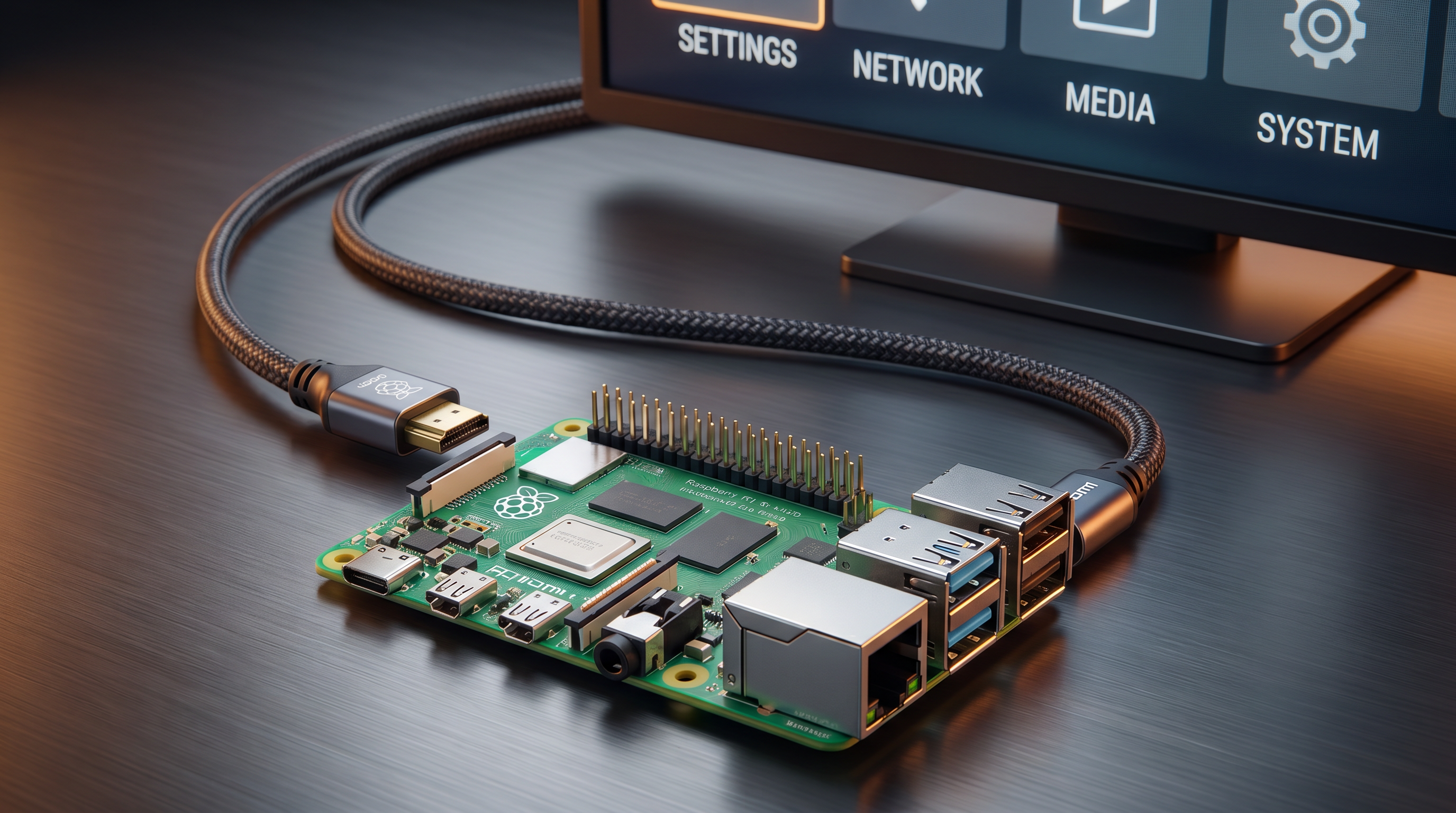
GoVista as a Browser Kiosk — Setup Guide
GoVista is a Progressive Web App at https://player.govista.app. You don't install anything — but you do need the host browser to launch on boot, run fullscreen, and not let users escape it. This guide covers three reliable kiosk-mode setups.
TL;DR — pick your path
flowchart TD
    Start[I need GoVista in a browser kiosk] --> Q1{What's the host hardware?}
    Q1 -->|Spare PC, any OS| Chrome[Path 1: Chrome Kiosk<br/>Cross-platform, easy revert]
    Q1 -->|Dedicated Windows kiosk| Edge[Path 2: Edge Assigned Access<br/>Tamper-proof, Windows Pro+]
    Q1 -->|Cheap dedicated signage hardware| Pi[Path 3: Raspberry Pi + systemd<br/>~$75 unattended kiosk]

    Chrome --> ResultChrome[✅ Universal<br/>⚠️ User can ESC out]
    Edge --> ResultEdge[✅ True kiosk lockdown<br/>⚠️ Windows Pro only]
    Pi --> ResultPi[✅ Cheap + bulletproof<br/>⚠️ Linux familiarity needed]

    style Chrome fill:#d97706,stroke:#b45309,color:#fff
    style Edge fill:#0284c7,stroke:#0369a1,color:#fff
    style Pi fill:#059669,stroke:#047857,color:#fff
| Path 1 — Chrome Kiosk | Path 2 — Edge Assigned Access | Path 3 — Raspberry Pi | |
|---|---|---|---|
| Time to set up | ~3 min | ~5 min | ~20 min |
| OS support | Windows / Mac / Linux | Windows 10 Pro+ / IoT | Pi OS (Linux) |
| Hardware cost | $0 (existing PC) | $0 (existing PC) | ~$75 (Pi + PSU + SD) |
| ESC / Alt+F4 escape | ⚠️ Possible | ✅ Blocked | ⚠️ Possible (configurable) |
| Auto-restart on crash | ❌ Manual | ✅ Built-in | ✅ systemd handles it |
| Multi-monitor | ✅ Per-monitor shortcut | ✅ Per-display | ✅ HDMI0/HDMI1 |
| Good for | First test, demos, ad-hoc PCs | Dedicated Windows signage | Cheap mass-deployed signage |
Before you start
- The PWA is at
https://player.govista.app. You don't download anything. - Internet is required at boot. PWA loads its assets from our CDN. After first load, service worker caches everything for offline operation.
- Browser must be Chromium-based (Chrome, Edge, Brave, Opera, Vivaldi, Chromium). Safari and Firefox work but don't have proper kiosk modes.
Path 1 — Chrome Kiosk Mode (cross-platform, 3 min)
The universal starting point. Works on any OS that has Chrome installed.
Windows
-
Confirm Chrome is at
C:\Program Files\Google\Chrome\Application\chrome.exe. Otherwise adjust the path below. -
Create a Startup shortcut: Win+R → type
shell:startup→ Enter → right-click → New → Shortcut. Target:"C:\Program Files\Google\Chrome\Application\chrome.exe" --kiosk --app=https://player.govista.app --noerrdialogs --disable-infobars --no-first-run -
Reboot the PC. Chrome opens fullscreen on GoVista at login.
macOS
-
Confirm Chrome is at
/Applications/Google Chrome.app. -
Add a Login Item: System Settings → General → Login Items → + → pick a script file containing:
/Applications/Google\ Chrome.app/Contents/MacOS/Google\ Chrome --kiosk --app=https://player.govista.app -
Next login, Chrome launches into GoVista fullscreen.
Linux (Ubuntu / Debian / Fedora)
-
Install Chromium (cross-platform open-source build of Chrome):
sudo apt install -y chromium-browser -
Add this command to your desktop environment's autostart at
~/.config/autostart/govista.desktop:[Desktop Entry] Type=Application Name=GoVista Kiosk Exec=chromium-browser --kiosk --app=https://player.govista.app --noerrdialogs --disable-infobars --no-first-run --check-for-update-interval=31536000 X-GNOME-Autostart-enabled=true -
Reboot. Chromium opens fullscreen into GoVista on every login.
Pros / cons
- ✅ Works on any spare PC, no special hardware.
- ✅ Easy to revert by removing the shortcut.
- ⚠️ Requires OS to auto-login (otherwise nothing launches until someone types a password).
- ⚠️ User can ESC out of fullscreen on most platforms — for true lockdown, use Path 2 (Windows) or set Pi OS to ignore keyboard input.
Path 2 — Microsoft Edge Assigned Access (Windows, 5 min)
The most polished kiosk mode in the industry. Requires Windows 10 Pro/Enterprise/Education or Windows IoT (Home edition does not include this feature).
Steps
-
Create a local user account dedicated to the kiosk (e.g., "GoVistaKiosk"). Don't use an admin account.
-
Open Settings → Accounts → Family & other users.
-
Scroll to Set up a kiosk and click Assigned access.
-
Pick the kiosk user → click Microsoft Edge.
-
Choose As a digital sign or interactive display. Enter the URL:
https://player.govista.app -
Set idle behavior to Do not restart. Click Next, then Done.
-
Sign out and sign back in as the kiosk user. Edge opens fullscreen on GoVista. No taskbar, no ESC.
Pros / cons
- ✅ True tamper-proof kiosk. ESC, Alt+F4, Ctrl+Alt+Del all blocked.
- ✅ Auto-restart on crash built into Windows.
- ✅ Auto-locks after idle, then re-launches fullscreen.
- ⚠️ Windows Pro+ only (most consumer laptops ship with Home — check
winver). - ⚠️ Per-machine setup; can't be group-policy'd without Intune / SCCM.
Path 3 — Raspberry Pi + systemd (cheap unattended, 20 min)
The cheapest credible signage hardware. ~$75 per panel including the Pi 4/5, official PSU, and SD card.
Why Pi over a Windows mini-PC
- No Windows licensing. Pi OS is free.
- No Android Device Owner provisioning. Just flash + boot.
- ARM video decoding handles 1080p H.264 at 60fps without thermal throttling on Pi 4/5.
- systemd guarantees auto-restart in <5 seconds on any crash.
Hardware shopping list
- Raspberry Pi 4 (4GB+) or Pi 5. Earlier models struggle with hardware video decoding.
- Official 27W power supply for Pi 5. Undervolting from cheap PSUs causes hard-to-debug crashes.
- microSD card 16 GB or larger. A SanDisk Endurance card is worth the $10 premium for 24/7 operation.
- HDMI cable to your display.
Pi OS setup
-
Flash Raspberry Pi OS (64-bit, Desktop) using Raspberry Pi Imager. In Imager → Advanced → enable auto-login as user "pi".
-
Boot the Pi. Connect to Wi-Fi or Ethernet. Update:
sudo apt update && sudo apt full-upgrade -y -
Install Chromium + helpers:
sudo apt install -y chromium-browser unclutter xdotool
Systemd kiosk service
-
Create the service unit file:
sudo nano /etc/systemd/system/govista-kiosk.service -
Paste this contents (replace
piwith your auto-login username if different):[Unit] Description=GoVista Kiosk After=graphical.target [Service] User=pi Environment=DISPLAY=:0 ExecStart=/usr/bin/chromium-browser --kiosk --app=https://player.govista.app --noerrdialogs --disable-infobars --check-for-update-interval=31536000 Restart=always RestartSec=5 [Install] WantedBy=graphical.target -
Enable + start the service:
sudo systemctl enable govista-kiosk sudo systemctl start govista-kiosk -
Reboot the Pi. GoVista opens fullscreen on boot. Crashes recover within 5 seconds.
Disable screen blanking and DPMS
Pi OS will blank the screen after 10 minutes by default — fatal for signage. Disable:
sudo nano /etc/lightdm/lightdm.conf
# Add under [Seat:*]:
xserver-command=X -s 0 -dpms
Reboot. Display stays on 24/7.
Hide the cursor
For a clean signage look, unclutter (installed above) hides the mouse cursor after idle. Add to autostart:
unclutter -idle 0.5 -root &
Verification checklist
- Cold boot test — pull power 10 sec, reconnect. Kiosk lands on GoVista within 60 sec (PC) / 90 sec (Pi).
- Pairing code accepted — 6-digit code shown on screen, entered into the dashboard.
- First content download — assigned playlist starts playing within 2 minutes.
- Network resilience — pull the network cable for 30 sec, reconnect. Player recovers automatically.
- Tamper test — try ESC, Alt+F4, Win key. Should not exit kiosk on Path 2 + 3 with proper config.
- Display stays on — leave the kiosk for 30 minutes. Display must not blank.
Troubleshooting
Chrome opens but isn't fullscreen
The --kiosk flag must be the FIRST arg after the executable. Order matters.
"GoVista is not responding" dialog after first boot
The PWA hasn't finished service worker registration. Wait 60 sec, then refresh once with F5. After first successful load, subsequent boots are instant.
Display goes black after 10 minutes
Screen blanking is enabled. See "Disable screen blanking" above (Pi) or Control Panel → Power Options → Display: Never on Windows.
Edge Assigned Access shows the lock screen instead of Edge
Set kiosk user's password to never expire: wmic useraccount where name='GoVistaKiosk' set PasswordExpires=FALSE (run as admin).
Pi auto-login isn't working
Check /etc/lightdm/lightdm.conf includes:
autologin-user=pi
autologin-user-timeout=0
Chrome shows "GoVista wants to install" prompt
The PWA's manifest.webmanifest triggers install eligibility. Add --app= (not just --kiosk) and the prompt disappears.
What's next
Once a kiosk is paired:
- Dashboard → Network → [device] — live telemetry: bundle version, JS heap, frame drops
- Dashboard → Network → [device] → Commands — force-update, screenshot, cache clear, reload
- Dashboard → Schedules — daypart on/off and content rotation
Last verified: Chrome 130 on Windows 11, Edge 130 on Windows 11 Pro, Chromium on Raspberry Pi OS Bookworm. May 2026.